To import a MySQL database, you can follow the steps below to do so.
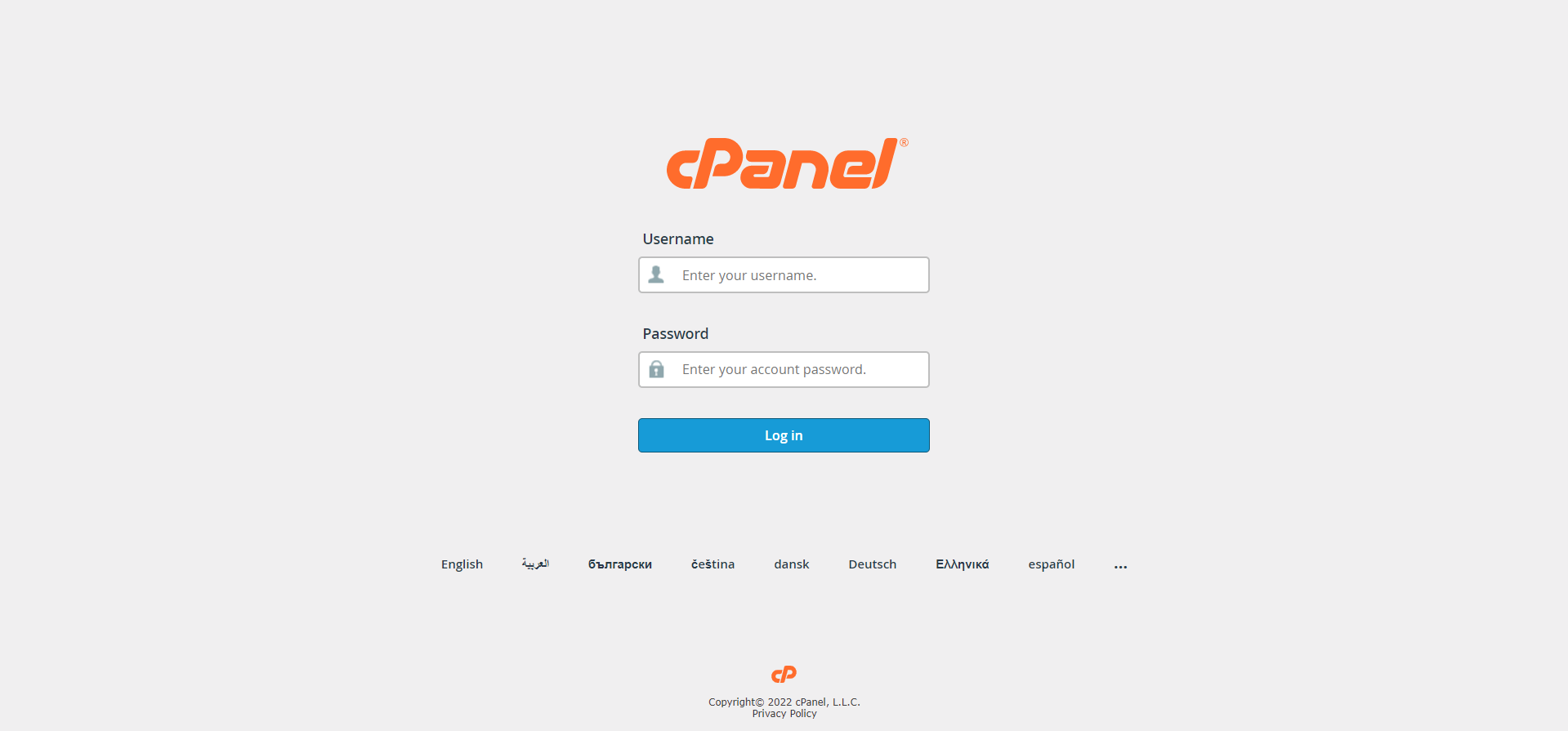
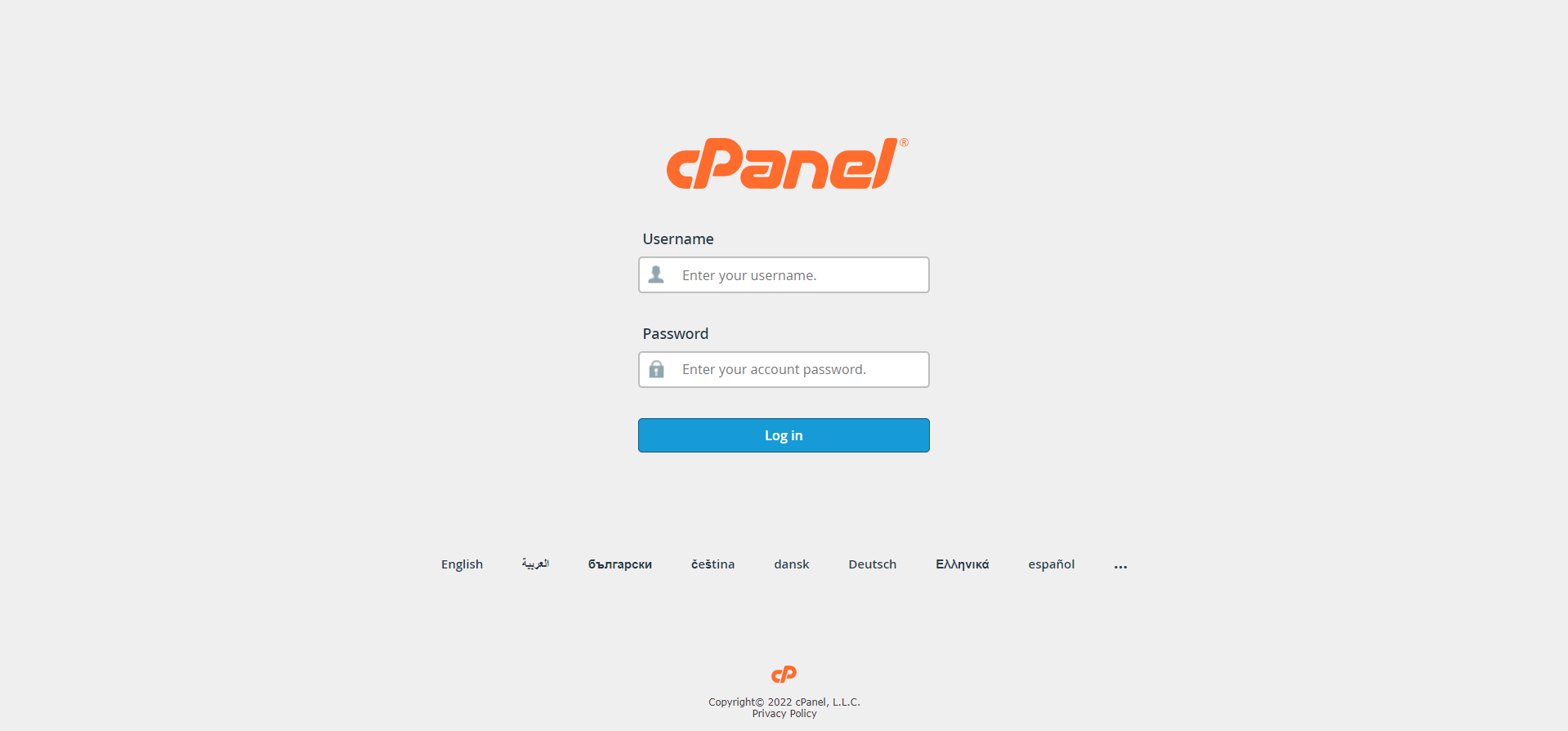
Step 01: Log into your cPanel account
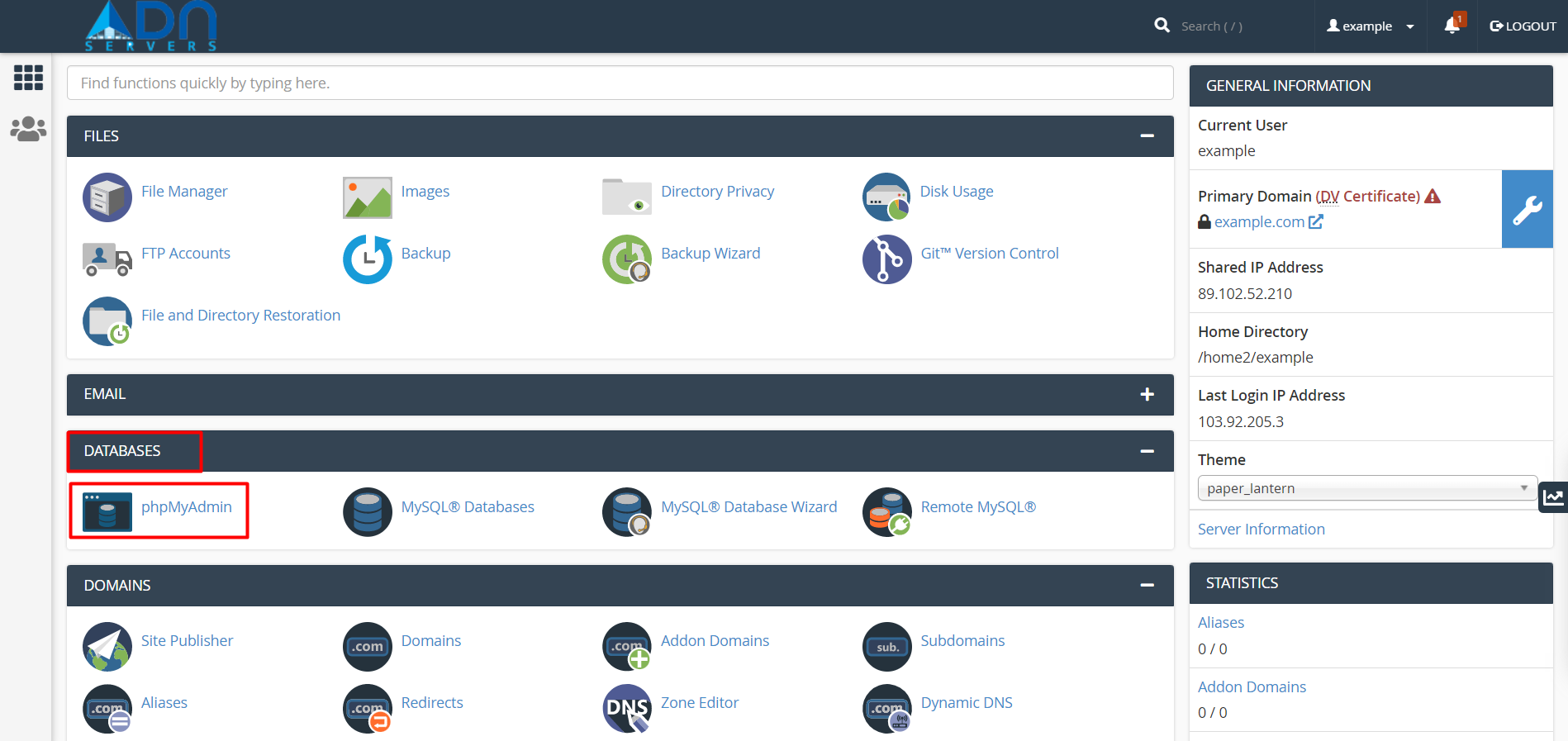
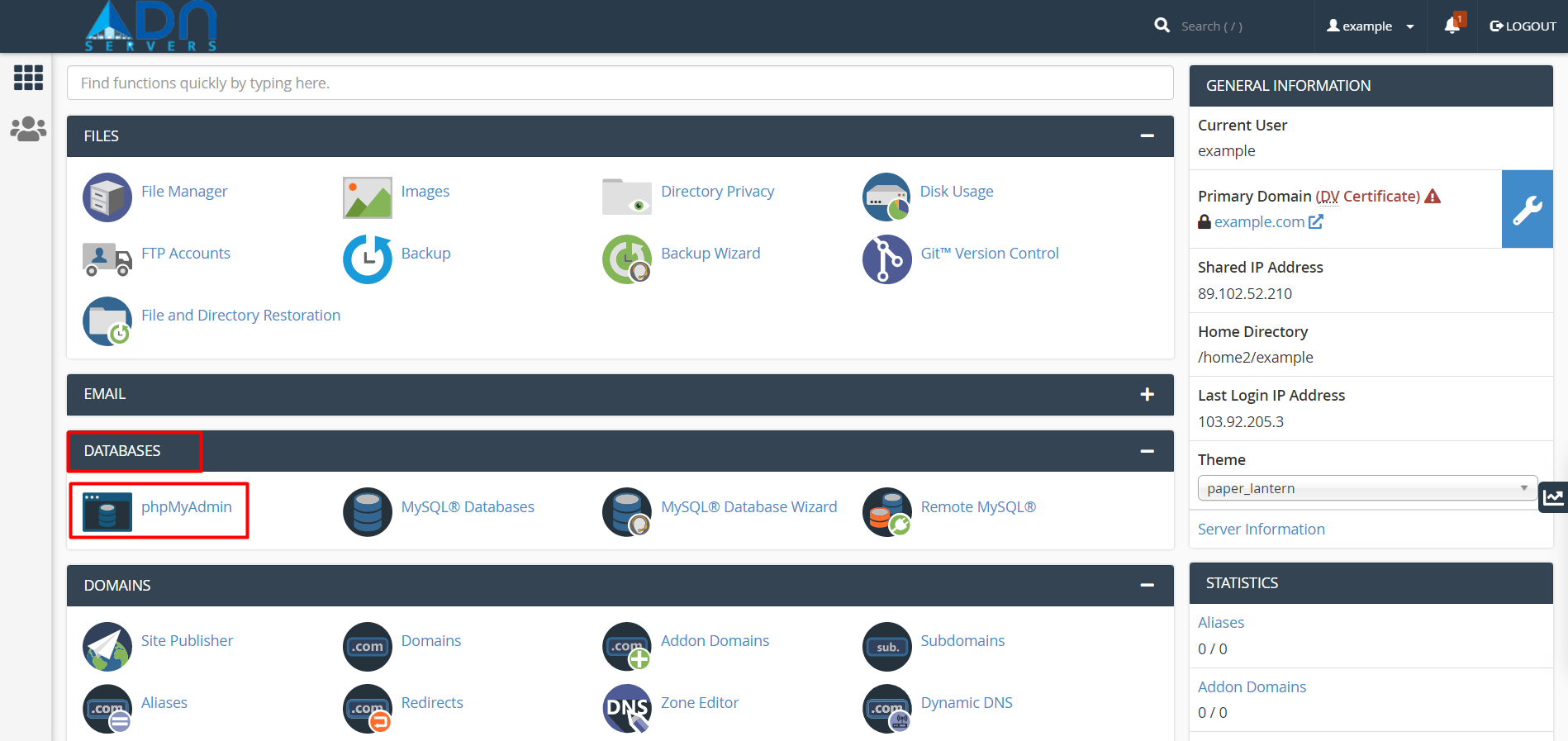
Step 02: Locate the “phpMyAdmin” icon found under the “Databases” section
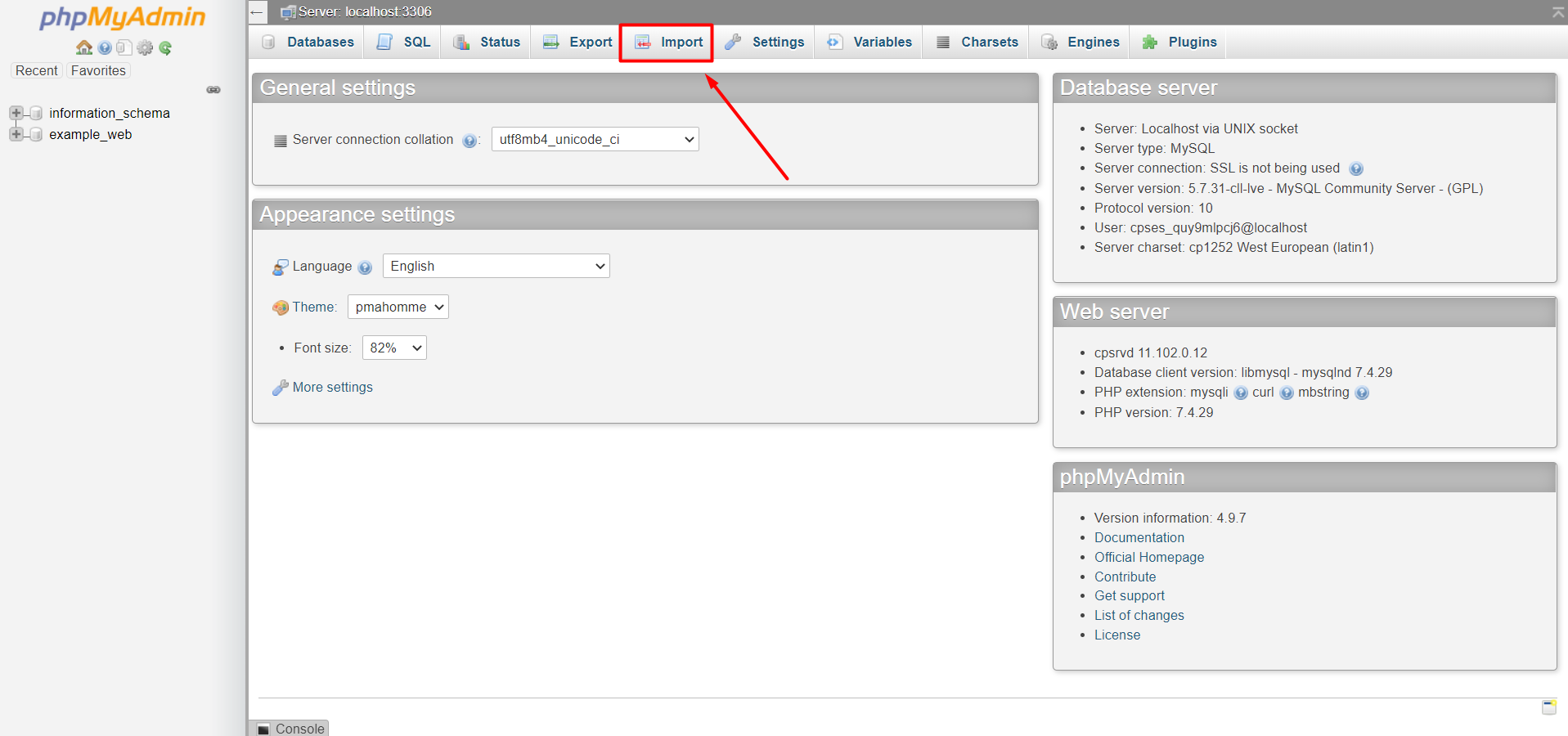
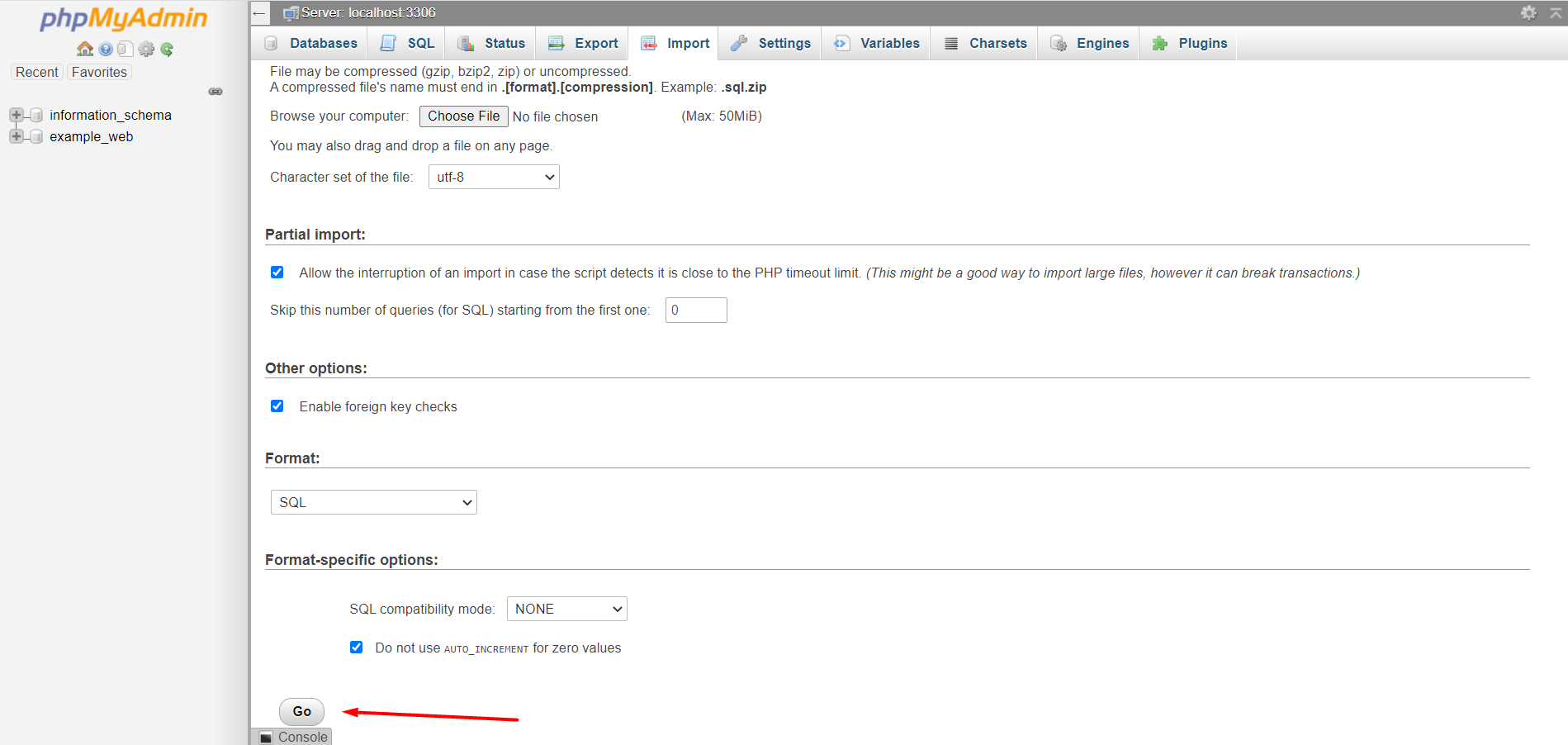
Step 03: After phpMyAdmin loads, click on the “Import” tab.
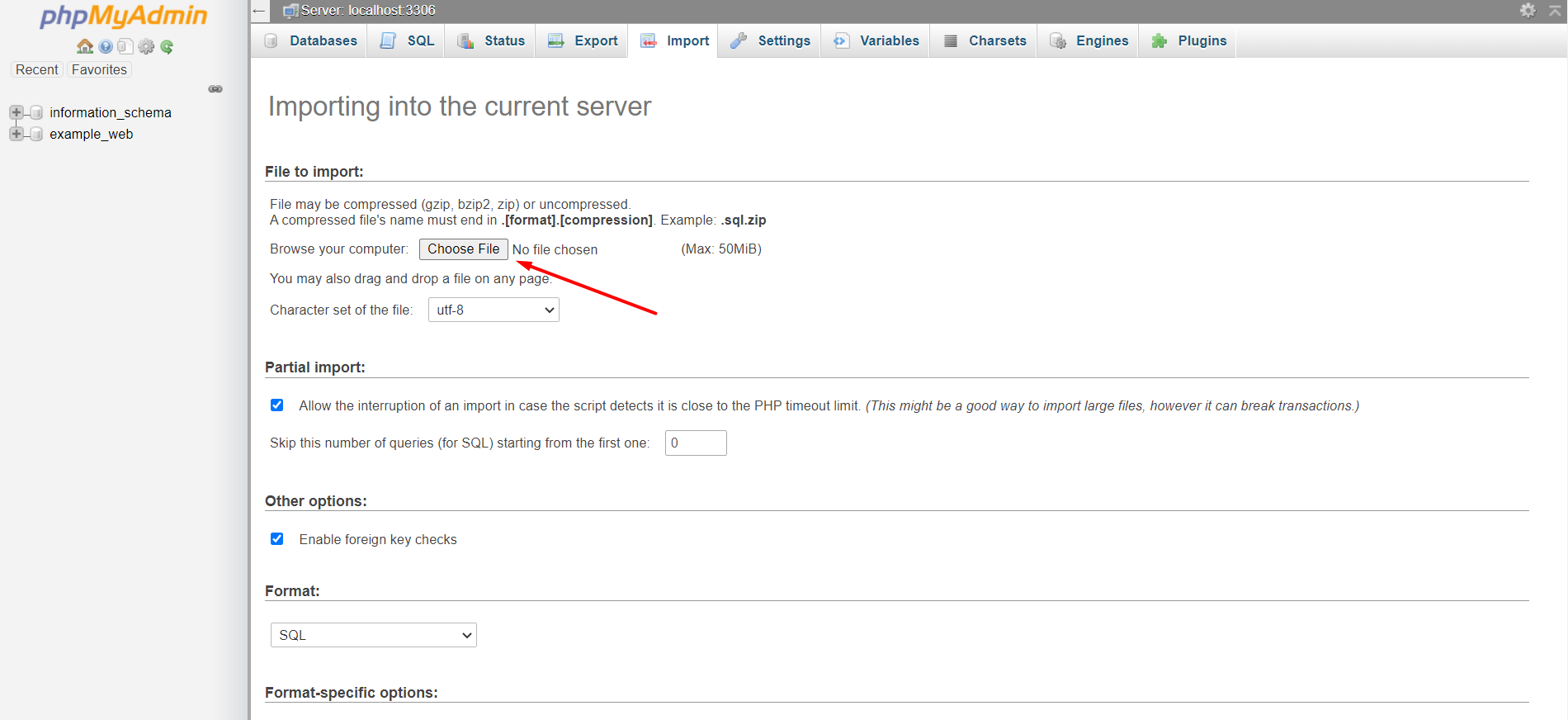
Step 04: Click on the “Choose File” button and select your .SQL file or you may also drag and drop a file on any page.
Step 05: Click on the “Go” button and your MySQL database will import.
To export a MySQL database, you can follow the steps below to do so.
Step 01: Log into your cPanel account
Step 02: Locate and click on the “phpMyAdmin” icon under the “Databases” category
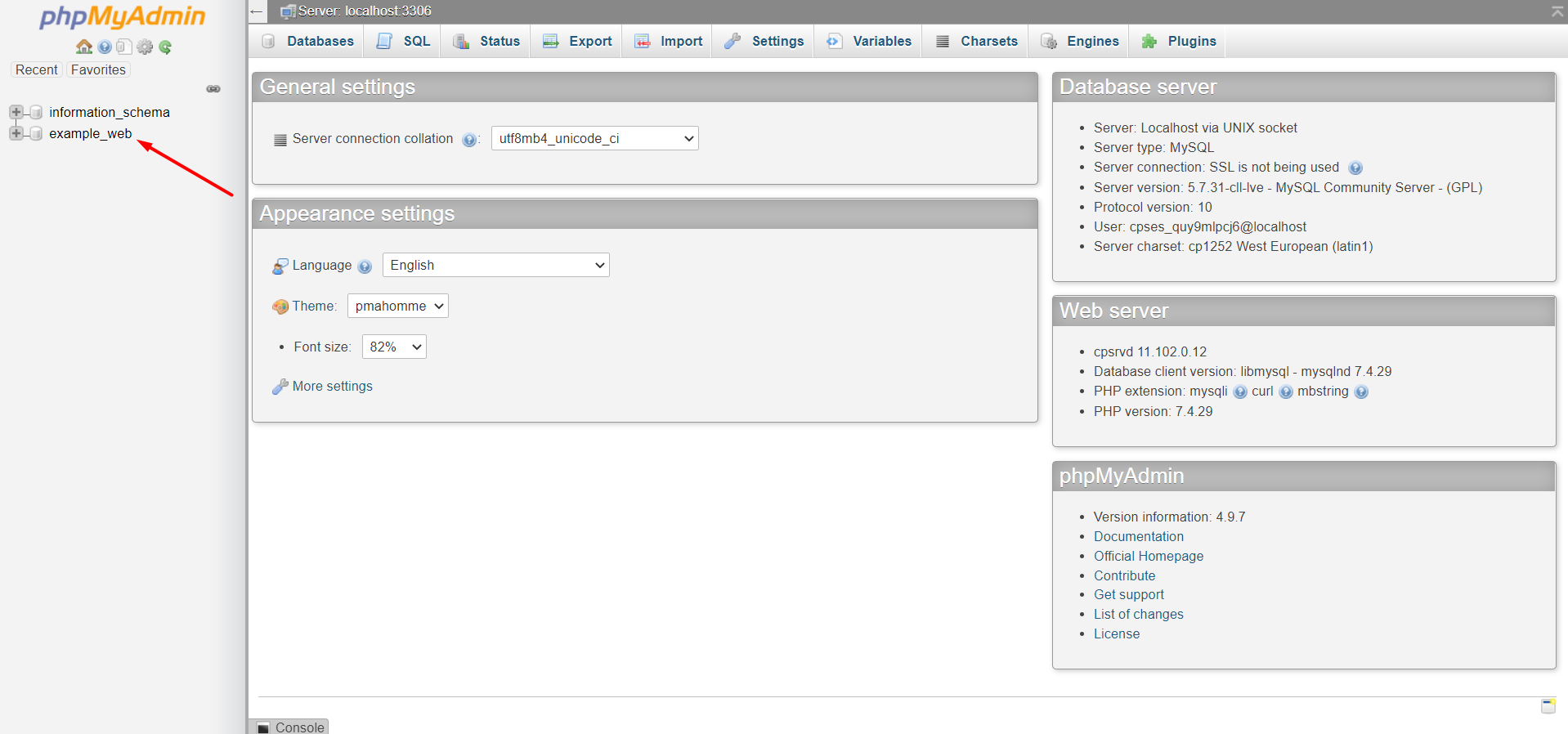
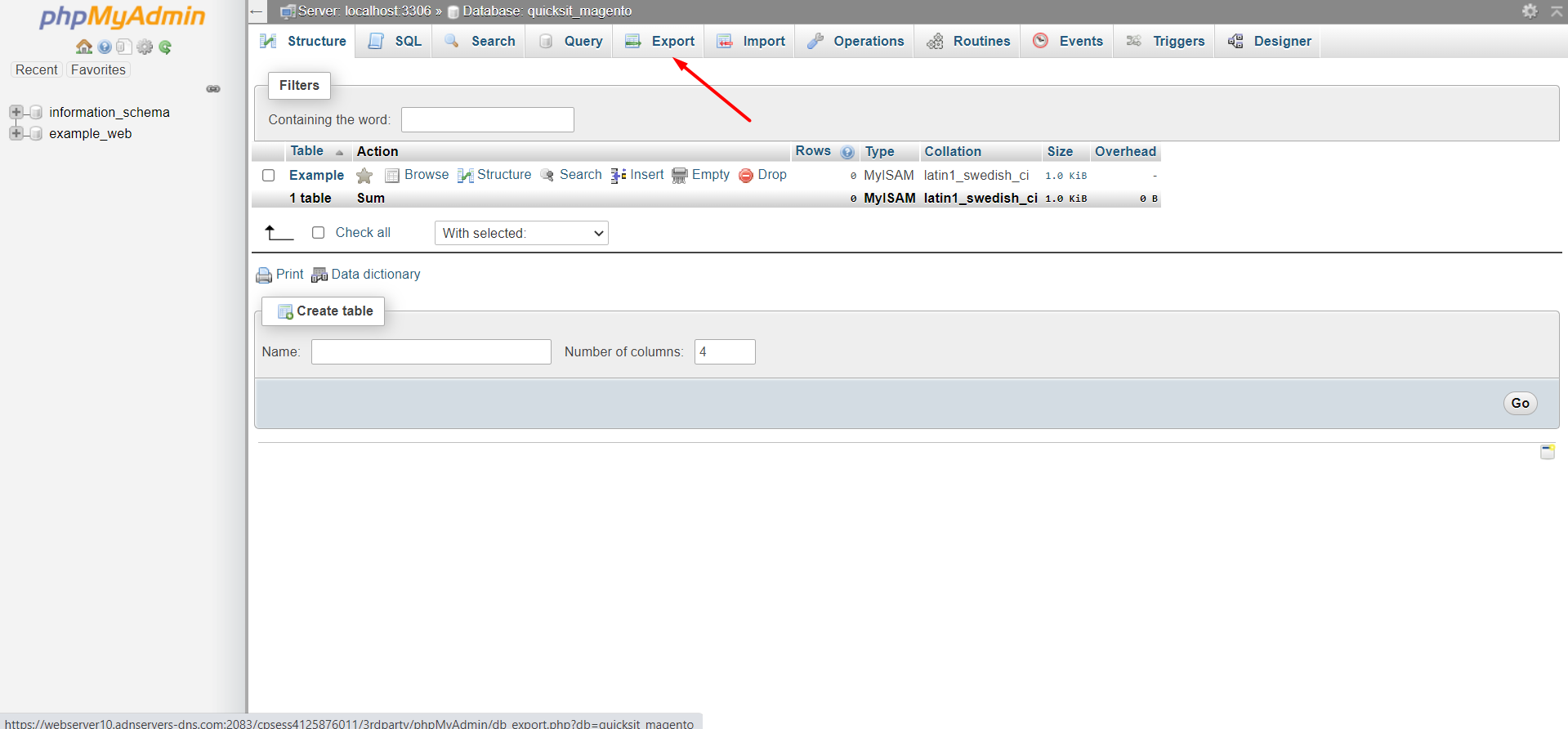
Step 03: Once phpMyAdmin loads, select a database from the left that you wish to export from the list on the left
Step 04: Click on the “Export” tab and select an export option (see below for export options)
Step 05: Click on the “Go” button and the database export will begin
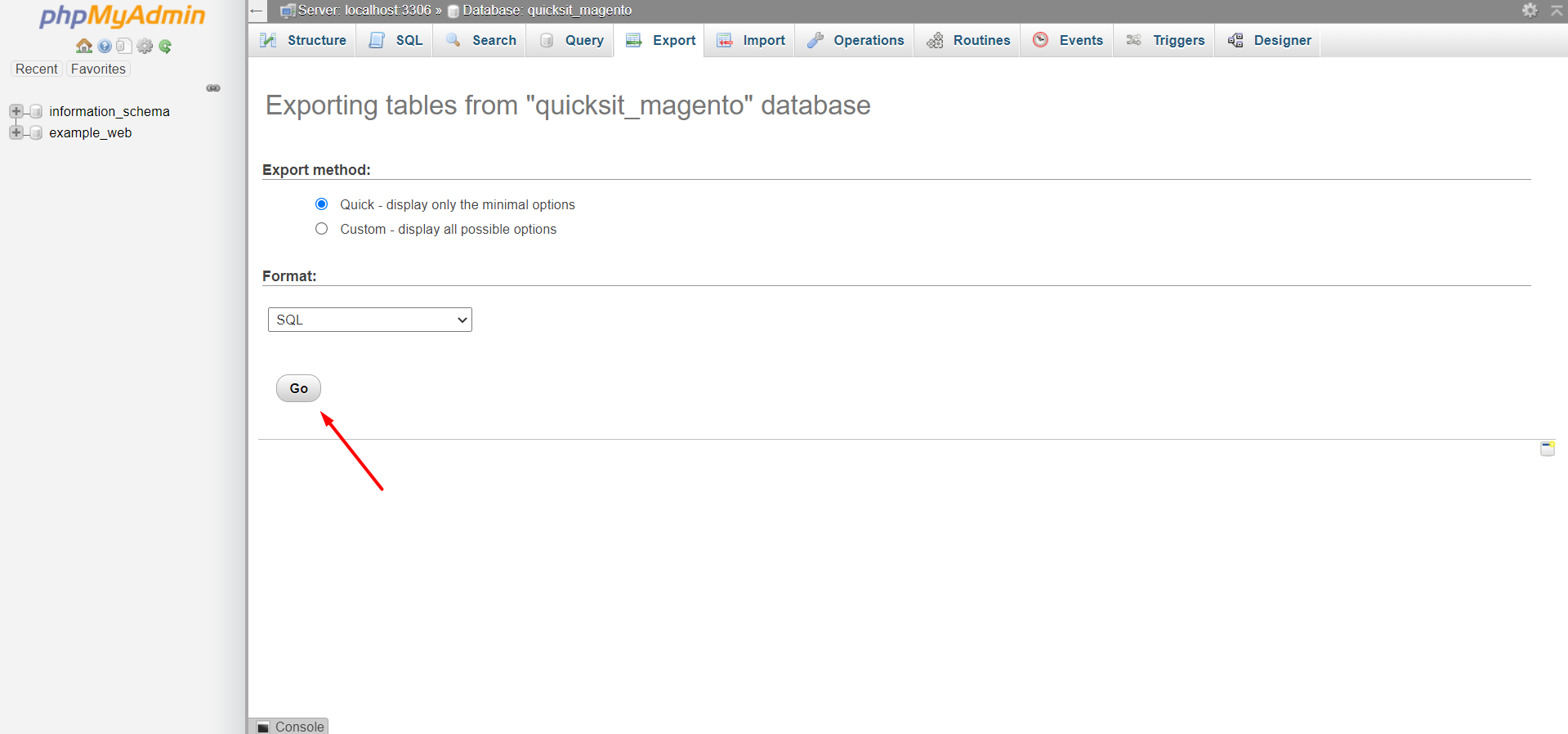
Export options:
Quick – Export the entire database using the default options.
Custom – Select specific tables within the database to export, or change the individual export options.
OR If you still have trouble please email us at support@adndiginet.com for more technical support.


